
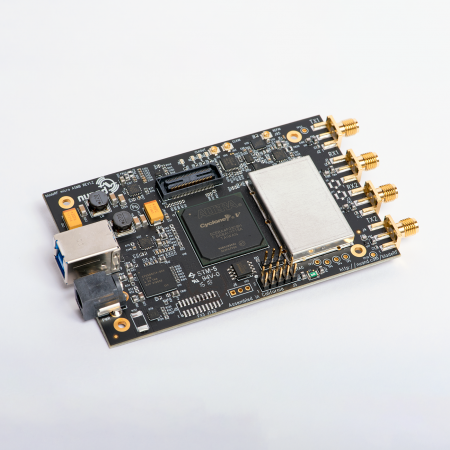
To manually calibrated a bladeRF 2.0 micro, you will need a calibrated spectrum analyzer. The goal will be to have the bladeRF 2.0 micro generate a CW that will then be used to measure the VCTCXO’s drift. Two measurements will be taken to generate the new calibration value. If successfully manually tuned, the calibration data can then be written to flash.
1) Create cw.csv with 1000 IQ rows of 1000,1000
Linux/macOS:
yes "1000,1000" | head -n 1000 > cw.csv
(That CSV format is SC16 Q11; valid sample range is [-2048, 2047], so 1000,1000 is in-range. )
2) Use bladeRF-cli to transmit a CW at the LO (example: 5 GHz)
Start interactive CLI:
bladeRF-cli -i
In the CLI:
Basic TX setup (TX1)
bladeRF> set samplerate tx1 1M
bladeRF> set bandwidth  tx1 1M
bladeRF> set frequency  tx1 5G
bladeRF> set gain       tx1 0
(That set frequency tx1 … sets the RFIC LO; on bladeRF2/AD9361, TX1 and TX2 share one LO, so don’t try to set TX2 to a different center frequency. )
Configure TX to read your CSV forever and start transmitting
bladeRF> tx config file=cw.csv format=csv repeat=0 channel=1
bladeRF> tx start
repeat=0means “repeat until stopped.”- CSV expects two columns per channel (I,Q).
- bladeRF-cli will convert CSV to an internal binary file first and clamp out-of-range values.
On the spectrum analyzer you should now see a strong carrier near 5 GHz.
Stop when done:
bladeRF> tx stop
3) Calibrate frequency by adjusting VCTCXO (trimdac) while watching the CW
A) Warm up + measure error
- Let the bladeRF sit powered for a bit (about a minute).
- Leave the CW transmitting at your target (e.g., 5.000000000 GHz).
- On the spectrum analyzer, measure the peak accurately (marker / counter).
Let:
f_set = 5,000,000,000 Hzf_meas = analyzer readingerr = f_meas - f_set(Hz)
At 5 GHz:
- 1 ppm ≈ 5 kHz
- 0.1 ppm ≈ 500 Hz
B) Back up calibration region BEFORE you write anything
In bladeRF-cli:
bladeRF> flash_backup cal_backup.bin cal
This backs up the calibration data region. Factory default calibration data can be found on the Calibration page.
C) View current/stored trimdac
bladeRF> print trimdac
(trimdac is the VCTCXO trim DAC setting. )
D) Find which direction moves frequency (1 quick test)
Pick a small step (example: +0x10), change trimdac, and watch which way the CW moves:
bladeRF> set trimdac 0x1E10
- If the CW frequency increases, then increasing trimdac pushes the oscillator/LO up.
- If the CW frequency decreases, then increasing trimdac pushes it down.
(You only need to discover the sign once.)
E) Converge quickly using a “slope” measurement
Do two measurements:
- Set trimdac to
dac0, measuref0 - Set trimdac to
dac1 = dac0 + Δdac(e.g., +0x40), measuref1
Compute:
slope ≈ (f1 - f0) / (dac1 - dac0)(Hz per DAC step)
Then estimate the correction you need from the initial error err0 = f0 - f_set:
Δdac_needed ≈ - err0 / slope
Set:
bladeRF> set trimdac 0x<new_value>
Re-measure, then use smaller Δdac steps (0x10, 0x04, 0x01) to fine tune.
Ensure you find and try a VCTCXO DAC trim value that centers the bladeRF 2.0 micro generated CW at 5GHz on the calibrated spectrum analyzer.
4) Save the trimdac so it persists after power cycle
A) Get your FPGA variant (A4/A5/A9) from info
bladeRF> info
info prints (among other things) VCTCXO DAC calibration value and FPGA size.
B) Write calibration (store the trimdac into flash)
On bladeRF 2.0 micro you’ll commonly use A4 / A5 / A9 as the FPGA identifier when initializing calibration (example shown by Nuand staff: flash_init_cal A4 0x1c71).
So you would do (example):
bladeRF> flash_init_cal A4 0x<your_final_trim>
C) Power-cycle
A power cycle is required for calibration flash changes to take effect.
After reboot:
bladeRF> print trimdac
bladeRF> info
Confirm the stored calibration value matches what you wrote.
Notes that matter for your “5 GHz reads as 5 GHz” goal
- This trim calibrates the bladeRF’s oscillator, so the correction is fractional and applies across frequencies (including 5 GHz).
- Do the final tweak at the frequency you care about most (your 5 GHz example is fine).
- Temperature changes will still cause some drift; do the calibration when the device is at a typical operating temperature.
If you paste the measured frequency error you’re seeing at 5 GHz (e.g., “I set 5G, analyzer shows 5,000,012,300 Hz”) and your current print trimdac value, I can give you a concrete “try this next trimdac” jump-size to land on target in 1–2 iterations.